~/docs›Guide
Comments and reviews
Comment on your code like on a pull request. Publish a comment right away, or collect several in a review and send them together, so that your agent sees the whole picture at once.
Comment on lines
- Select the lines.
- Press
Ctrl+Cmd+Con macOS (Ctrl+Alt+Con Windows and Linux), or right-click and choose Comment on Selection. - Type your comment. Markdown is supported.
- Click Comment.
The comment is published: the agent sessions subscribed to the branch receive it (see Working with Claude).
You can change the shortcut with the silykat.commentShortcut setting (see Settings).
Comment on a whole file
Right-click the file’s tab and choose Comment on File. The thread has no line: it shows at the top of the file.
Reply, edit, delete
- Reply: type in the thread and click Reply (or press
Cmd+Enter). - Edit or Delete one of your comments with the icons on the comment. The agent’s comments are read-only.
- Delete Thread (trash icon in the thread header) removes the whole thread.
You can edit or delete a comment even while the agent works on it. It adapts to the new version (see Working with Claude).
Resolve and reopen
- Click Resolve (the ✓ in the thread header) to close the thread once you are satisfied. It collapses. Resolving does not apply anything: it only says the conversation is over.
- Click Reopen to open it again. Replying in a resolved thread reopens it too, and hands it back to the agent.
Only you resolve threads.
Follow your threads
- The thread header shows where it stands: Waiting for Claude, 💬 Claude replied, ✅ Addressed by Claude or ❓ Claude is waiting for your reply.
- When the agent replies, a notification tells you where.
- A counter in the status bar shows how many threads wait for your reply. Click it to see them.
- The Comments panel of VS Code lists every thread, and can hide the resolved ones.
Reviews
A review lets you write several comments first, then send them all at once with a summary. The agent sees nothing until you submit.
- Write your first comment, then click Start Review instead of Comment. The comment becomes a Pending draft, and the status bar shows Review · 1.
- Add more comments with Add to Review. To publish one right away instead, click Comment Now. Replies work the same way: Add to Review, or Reply Now.
- When you are done, click Review · N in the status bar, then Submit Review. You can add a summary.
The same menu has Show Pending Comments, to go through your drafts, and Discard Review, to drop them all.
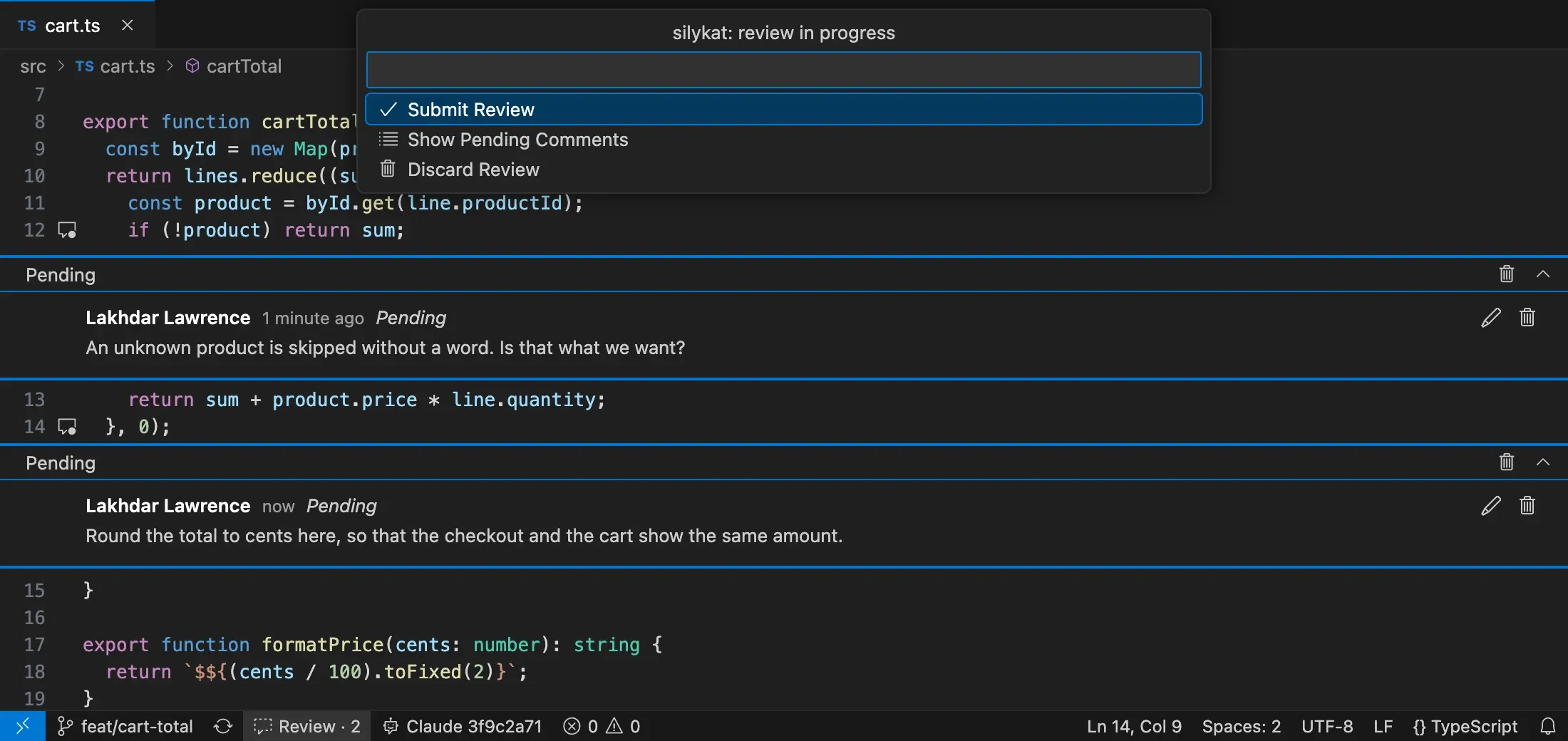
Drafts survive a restart of VS Code.
What a review covers
- A file tracked by git: the review belongs to the branch. There is one review per branch, and every file of the branch can join it.
- A file outside git (or ignored by git): the review belongs to the folder that holds the file.
specs/a.mdandspecs/b.mdshare a review,notes/c.mdgets its own.
When several reviews are in progress, the status bar shows the review of the file you have open, or N reviews when that file has none.
Comment in a diff
You can comment in any diff VS Code opens:
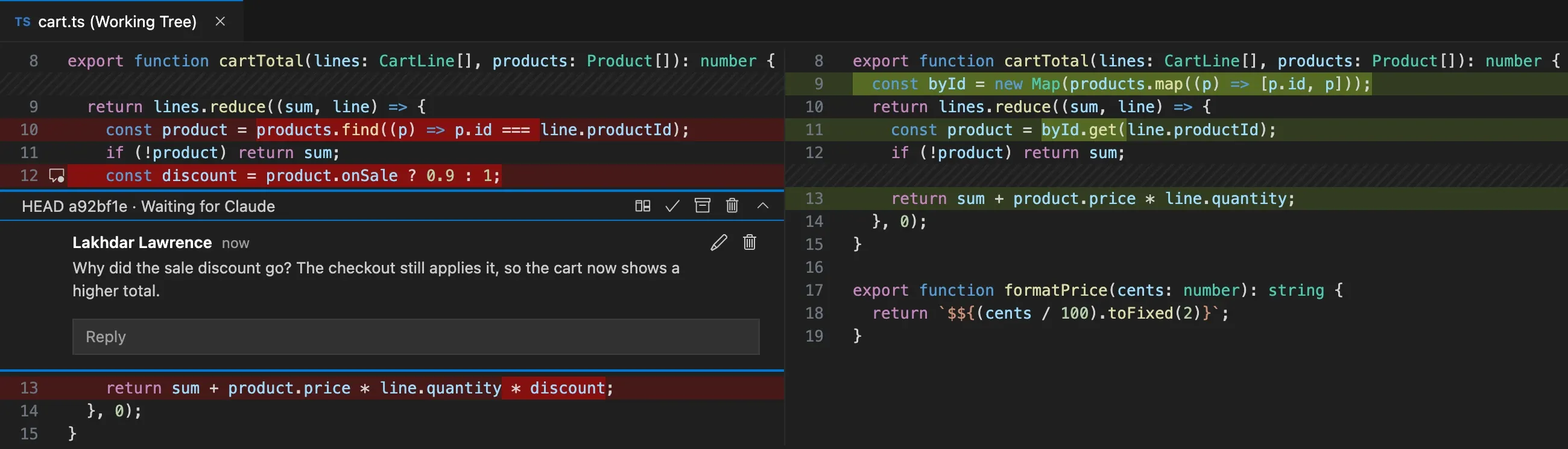
- Your changes: click a file in Source Control. Both sides can be commented, deleted lines included.
- Staged changes: the diff between
HEADand the index. - A past commit: open it from the Timeline.
- Two files: right-click one and choose Select for Compare, then right-click the other and choose Compare with Selected.
A thread on an older version says which one in its header, for example Index or HEAD a92bf1e. Click Open Original Diff in its header to reopen that exact diff later.
Good to know
- Your name on comments comes from
git config user.name. Change it with thesilykat.userNamesetting. - Files outside your project can be commented too. See Threads, branches and worktrees.
- Comments stay out of git: silykat adds its folder to
.git/info/exclude, never to.gitignore. See Data and privacy.