~/docs›Getting started
Install
silykat has two parts: an extension for VS Code, where you comment, and a plugin for Claude Code, so that Claude receives your comments. Install both. It takes a few minutes.
Requirements
- VS Code 1.100 or later.
- git.
- Claude Code in a terminal, logged in with a claude.ai account (Pro or Max) or a Console API key.
1. Install the VS Code extension
- In VS Code, open the Extensions view.
- Search for silykat and click Install.
Or, in a terminal:
code --install-extension silykat.silykatThe extension is on the VS Code Marketplace and on Open VSX.
2. Install the Claude Code plugin
In a terminal, run:
claude plugin marketplace add silykat/silykat
claude plugin install silykat@silykat
3. Launch Claude Code with the silykat channel
The channel is what lets your comments reach Claude on their own. Channels are a Claude Code research preview, so the launch command is long. Add an alias to your shell profile (for example ~/.zshrc):
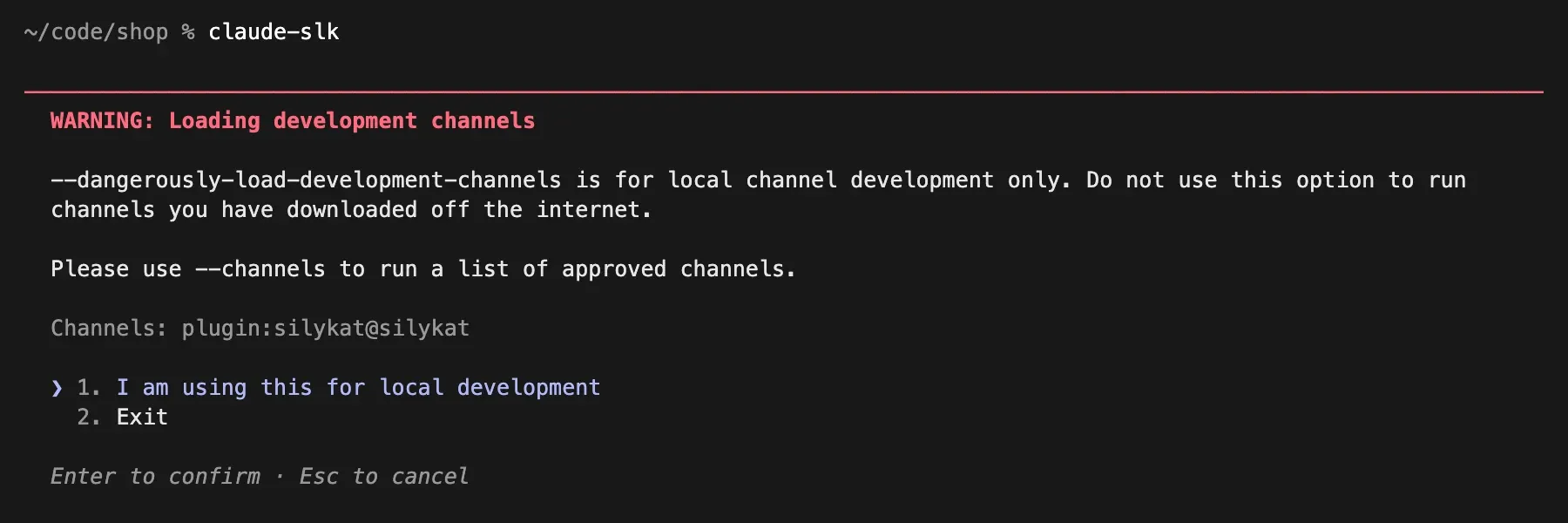
alias claude-slk='claude --dangerously-load-development-channels plugin:silykat@silykat'Open a new terminal, then start Claude Code with claude-slk instead of claude.
At each launch, Claude Code warns you about development channels. Choose I am using this for local development.
You are ready: go to the Quick start.
Update
The extension updates itself from the Marketplace. To update the plugin:
claude plugin marketplace update silykat
claude plugin update silykat@silykat
Then restart your Claude Code sessions.
Good to know
Other editors based on VS Code
Cursor, VSCodium and Windsurf install extensions from Open VSX, where silykat is published. They are not tested yet. The editor must be based on VS Code 1.100 or later. The Claude Code plugin does not depend on the editor.
Install a specific version
Each release has the extension as a .vsix file. In VS Code, run Extensions: Install from VSIX… from the Command Palette and pick the file.
Build from source
You need Node.js 22.12 or later, with npm 11.10 or later, and the code command on your PATH (in VS Code, run Shell Command: Install ‘code’ command in PATH).
git clone https://github.com/silykat/silykat.git
cd silykat
npm install
npm run install-ext
Then reload VS Code (Developer: Reload Window). To build the .vsix without installing it, run npm run package: the file is packages/vscode-extension/dist/silykat.vsix.