~/docs›Guide
Threads, branches and worktrees
Your code keeps changing, and so do your branches. silykat threads follow along: they move with the lines, belong to their branch, and are never lost when you switch.
Threads follow the code
- You edit above or inside a thread: it moves with its lines. The new position is saved when you save the file.
- The file changes outside the editor (
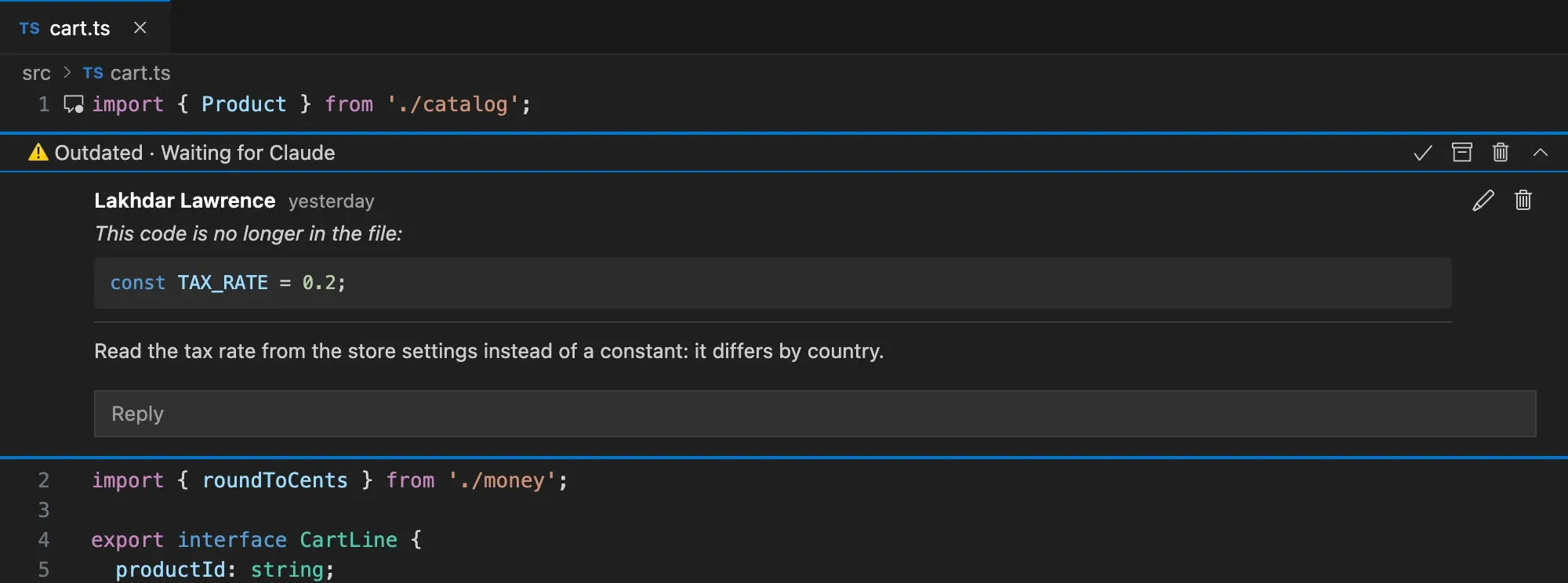
git stash, another tool, or while VS Code was closed): the thread finds its code again. - The code is gone: the thread turns ⚠️ Outdated. It moves to line 1 and quotes the code it was about. If the code comes back, the thread attaches to it again on its own.
Threads belong to their branch
A thread belongs to the git branch of its file.
- After
git checkout, VS Code shows only the threads of the branch you are on. The others come back with their branch. - Each branch has its own review (see Reviews).
- Renaming a branch keeps its threads. Deleting a branch deletes its threads.
- Files ignored by git, and files outside git, are on no branch: their threads always show.
Worktrees
Each git worktree has its own branch, so its own threads and its own review. The status bar and Submit Review act on the review of the file you have open.
Before you remove a worktree
git worktree remove deletes the worktree’s folder, and its comments with it. To keep them in your history and in your retros, save them first:
- Open the worktree in VS Code.
- Run silykat: Save Worktree Threads from the Command Palette.
The threads are copied to the main repository. They stay in your history and in your retros after the worktree is gone. Saving again refreshes the copy.
The first time you open a worktree that has comments, VS Code reminds you of this, with a Save Threads Now button.
Files outside the open folders
You can comment on a file that is in none of the folders open in VS Code, for example a spec your agent wrote in a parent folder. It works like any other file. Its threads show in any VS Code window where you open it.
These files have no git features: no comments on a diff, no following a rename.
Good to know
- Rebases: threads follow the branch being rebased, but commenting during a rebase is not supported yet.
- Where the copies go: threads saved from a worktree are in the
.silykat/saved/folder of the main repository. VS Code does not show them, butslk review historyand retros do. See Data and privacy.